
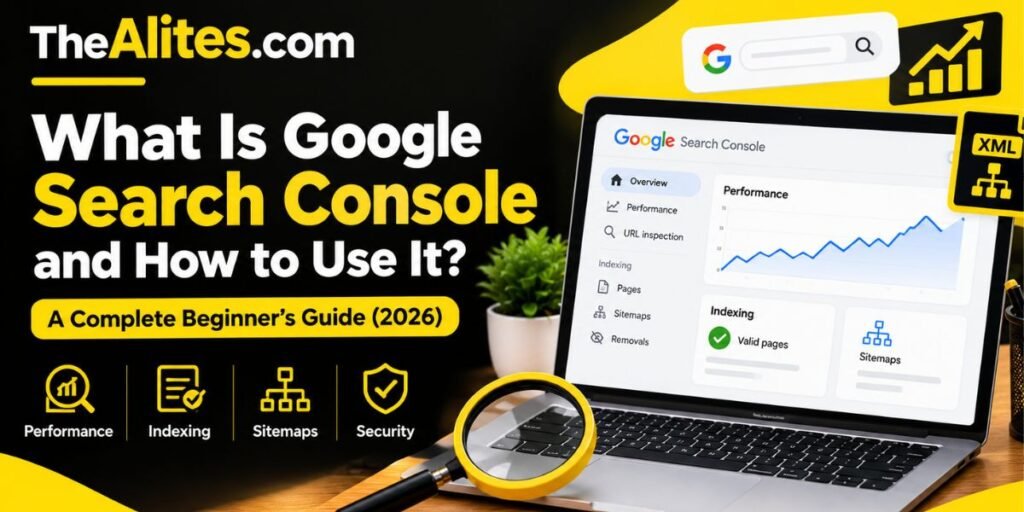

Introduction:
Creating a website is only the first step toward building an online presence. Once your website is live, you need to understand whether people can find it through Google Search, which pages attract visitors, and whether technical issues are preventing important content from appearing in search results.
This is where Google Search Console becomes useful.
Google Search Console is a free tool that helps website owners monitor their website’s performance in Google Search. It provides information about search queries, clicks, impressions, indexing status, and potential technical problems.
For beginners, the dashboard may initially appear complicated. Terms such as impressions, average position, canonical URLs, and indexing can be difficult to understand without proper guidance.
However, you do not need to be an SEO expert to use the platform effectively.
In this guide, you will learn what Google Search Console is, how to connect your website, how to understand its most important reports, and how to use its information to make better decisions about your content.
Whether you manage a personal blog, a business website, or an educational platform, understanding Search Console can help you identify problems and monitor your progress.
1. What Is Google Search Console?
Google Search Console, often abbreviated as GSC, is a free website monitoring service provided by Google.
Its primary purpose is to help website owners understand how their websites perform in Google Search and identify issues that may affect their search visibility.
Unlike some SEO tools that estimate traffic or keyword rankings using third-party databases, Search Console provides performance information directly from Google’s own search systems.
For example, suppose you publish an article about improving website loading speed.
After Google discovers and processes the article, Search Console may eventually show which search queries caused your page to appear in search results, how often users saw it, and how many people clicked through to your website.
You can also investigate whether Google has indexed the article or encountered problems accessing it.
Search Console is useful for beginners because it provides several important website monitoring features without requiring a paid subscription.
However, installing Search Console does not automatically improve your rankings. It is a diagnostic and reporting tool, not a shortcut to achieving higher search positions.
Google’s official documentation explains that Search Console helps website owners understand how Google crawls, indexes, and serves their content.
2. Why Is Google Search Console Important for Website Owners?
Many beginners publish articles without checking whether Google can discover or index them.
They may spend weeks creating content while important technical issues remain unnoticed.
Search Console helps reduce this uncertainty by providing information about your website’s relationship with Google Search.
For example, you might discover that an article receives hundreds of impressions but very few clicks. This information could encourage you to review its title, search intent, and relevance.
Alternatively, you might find that an important article has not been indexed because of an accidental noindex directive.
Without Search Console, identifying the underlying problem may take considerably longer.
Another important benefit is the ability to monitor changes over time.
If your website suddenly experiences a decline in organic search clicks, you can compare different date ranges and investigate which pages or search queries were affected.
Search Console also provides notifications about certain technical, security, and indexing issues.
Although checking the dashboard regularly is useful, there is no need to monitor every metric continuously.
The goal is to understand your website’s performance and use that information to make practical improvements.
3. How to Set Up Google Search Console Step by Step
Setting up Google Search Console is relatively straightforward.
You need a Google account and sufficient access to your website to complete ownership verification.
Start by visiting the official platform: Open Google Search Console
Sign in with your Google account and choose the option to add a property.
A property represents the website or website section you want to monitor.
Google provides two main property types.
Domain Property
A Domain property includes supported variations of your domain, including different protocols and subdomains.
For example, a Domain property for example.com can include data associated with its HTTP, HTTPS, www, and other subdomain versions.
This option generally requires DNS-based verification.
URL-Prefix Property
A URL-prefix property monitors URLs beginning with a specific address.
For example:
This property does not automatically include URLs belonging to http://example.com/ or https://www.example.com/.
For many beginners, a URL-prefix property can be convenient because it supports several verification methods.
However, a Domain property can provide a broader view when you want to monitor multiple versions of the same domain.
Choose the option that matches your requirements.
4. How to Verify Website Ownership
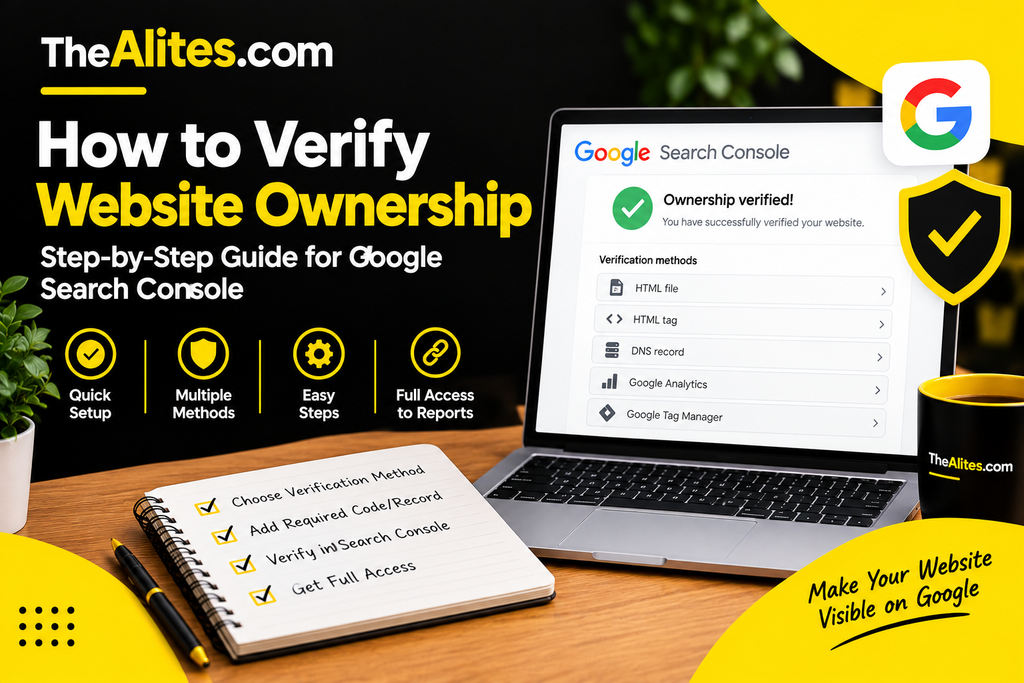
Google requires website ownership verification before allowing access to private Search Console data.
This process helps ensure that only authorized individuals can view website reports and manage relevant settings.
The available verification methods depend on your property type and website configuration.
Common methods include uploading an HTML file, adding an HTML meta tag, creating a DNS record, or using an eligible existing Google Analytics or Google Tag Manager configuration.
Example: HTML Tag Verification
Suppose you are using WordPress.
After adding your URL-prefix property, Google may provide an HTML verification tag.
You can add this tag to your website’s head section using a suitable website configuration method or SEO plugin that supports verification.
After saving the change, return to Search Console and click Verify.
Google will check whether the required verification information is accessible.
Example: DNS Verification
For a Domain property, Google generally provides a TXT record that you must add to your domain’s DNS configuration.
You can usually manage DNS records through your domain registrar or DNS hosting provider.
After adding the record, allow time for DNS changes to become available, then complete verification.
Do not remove verification records unnecessarily after your property has been verified. Google may periodically check whether ownership verification remains valid.
5. Understanding the Google Search Console Dashboard
Once verification is complete, you can access your website’s Search Console dashboard.
The dashboard provides an overview of available search performance and indexing information.
For a newly added website, some reports may initially contain limited information.
This does not automatically indicate a problem.
Google needs time to collect and process relevant data, and a new website may not yet have measurable search activity.
The main sections beginners should become familiar with include Performance, URL Inspection, Page indexing, Sitemaps, Experience, and Security & Manual Actions.
Some reports may appear only when relevant data or features are available for your property.
Rather than attempting to understand every advanced report immediately, begin with the tools that answer your most important questions.
For example, if you recently published a new article, URL Inspection is particularly useful.
If you want to understand which articles attract search visitors, the Performance report is a better starting point.
6. How to Use the Performance Report
The Performance report is one of the most valuable features of Google Search Console.
It helps you understand how your website appears in Google Search and how users interact with its search listings.
Open Search Console and navigate to the Search results report under Performance.
You will find several important metrics.
Total Clicks
Clicks represent instances in which users click eligible links from Google Search results to visit your website.
For example, if your website receives 150 clicks during a selected period, this means Search Console recorded 150 qualifying clicks from Google Search.
Clicks are not necessarily the same as unique visitors or sessions reported by analytics platforms.
Total Impressions
An impression generally occurs when a link to your website is shown in Google Search, subject to Google’s counting rules for different search result types.
An impression does not mean someone clicked your result.
For example, your website might receive 5,000 impressions but only 100 clicks.
This suggests your content appeared in search results more frequently than users selected it.
Average CTR
CTR stands for click-through rate.
It represents the percentage of impressions that resulted in clicks.
The formula is:
\[ CTR=\frac{Clicks}{Impressions}\times100 \]
For example, if your article receives 100 clicks from 5,000 impressions:
\[ CTR=\frac{100}{5000}\times100=2\% \]
A lower CTR is not automatically a sign of poor content. It can depend on search position, query type, search result layout, and user intent.
Average Position
Average position represents the average position of your website’s topmost result across the impressions included in the selected report.
It should not be interpreted as a permanent or universal keyword ranking.
Search positions can vary depending on the query, location, device, and other factors.
Google provides detailed explanations of these metrics in its Performance documentation.
Practical Performance Example
Consider the following hypothetical data for a beginner blog:
| Metric | Example result |
|---|---|
| Total clicks | 320 |
| Total impressions | 12,000 |
| Average CTR | 2.7% |
| Average position | 18.5 |
These numbers are illustrative, not actual website results.
Instead of focusing only on total clicks, investigate which articles generate impressions and whether those impressions match the topics your website covers.
This information can help guide future content improvements.
7. How to Find Keywords Using Google Search Console
Keyword research is not limited to discovering new topics before publishing articles.
Search Console can also reveal the queries for which your existing pages already appear.
Open the Performance report and select the Queries tab.
You will see available search queries along with their corresponding performance metrics.
For example, an article about starting a blog might appear for queries such as:
- How to start a blog
- Blogging tips for beginners
- How to create a WordPress blog
- What do I need to start blogging?
These queries can reveal how Google associates your content with different search topics.
You may also discover relevant questions that your article does not answer thoroughly.
This creates an opportunity to improve existing content.
How to Identify Content Opportunities
Start by selecting an important article in the Pages tab.
Apply the page filter, then open the Queries tab to see which search terms are associated with that article.
Look for relevant queries receiving impressions but relatively few clicks.
Review whether your article adequately answers those searches.
For example, if readers frequently discover your article through a question about blogging costs, but your article provides little information about expenses, adding a useful cost explanation may improve its relevance.
Do not insert every query into your article simply because it appears in Search Console.
Choose topics that genuinely support the article’s main purpose.
Also remember that Search Console does not display every search query. Some information is omitted for privacy and reporting reasons.
8. How to Check Whether Your Website Pages Are Indexed
Indexing is the process through which Google analyzes eligible webpages and may include them in its search index.
A page generally needs to be indexed before it can appear as a normal organic search result.
However, publishing an article does not guarantee that Google will index it.
Search Console provides a Page indexing report to help website owners understand which discovered URLs have been indexed and which have not.
Open the Indexing section and select Pages.
The report separates indexed and non-indexed URLs and provides explanations for different indexing outcomes.
For example, you may encounter statuses such as:
| Status | General meaning |
|---|---|
| Crawled – currently not indexed | Google crawled the page but has not indexed it |
| Discovered – currently not indexed | Google knows about the URL but has not crawled it yet |
| Excluded by noindex tag | A noindex directive prevents indexing |
| Blocked by robots.txt | Crawling is restricted |
| Page with redirect | The URL redirects elsewhere |
| Not found (404) | The requested page was not found |
Not every non-indexed URL requires fixing.
For example, an intentionally redirected page normally does not need separate indexing.
Focus on important articles and public pages that you actually want Google to include in its search index.
For individual URL troubleshooting, use URL Inspection rather than relying exclusively on the overall indexing report.
9. How to Use the URL Inspection Tool
URL Inspection allows you to examine Google’s available information about a specific webpage.
It is particularly helpful when you publish new content, update an important article, or investigate why a page is missing from Google Search.
To inspect a page, copy its complete URL and paste it into the inspection field at the top of Search Console.
Google will retrieve the available indexing information.
If the report says the URL is on Google, the page has been indexed and is eligible to appear in search results, although visibility for a particular query is not guaranteed.
If the URL is not indexed, review the explanation provided.
How to Request Indexing
If you recently published or substantially updated a page, you can use the Request Indexing option when available.
Before submitting the request, confirm that the page is publicly accessible and does not contain an unintended indexing restriction.
You can also select Test Live URL to examine the currently accessible version of the page.
It is important to understand that requesting indexing does not guarantee inclusion in Google’s index.
Repeatedly submitting the same URL will not force Google to index it faster.
Google’s URL Inspection documentation explains how indexed information, live testing, and indexing requests work.
10. How to Submit an XML Sitemap
An XML sitemap is a file that helps search engines discover URLs you want them to know about.
It is particularly useful for new websites and websites containing many pages.
Many website platforms automatically generate XML sitemaps.
For example, a WordPress website might use a sitemap address similar to:
https://example.com/sitemap_index.xml
The exact URL depends on your website’s configuration.
To submit a sitemap, open Search Console and select Sitemaps under Indexing.
Enter the sitemap URL in the appropriate field and submit it.
Google will attempt to retrieve and process the file.
After submission, review its reported status.
A successful sitemap submission indicates that Google was able to process the submitted sitemap; it does not mean every URL in that sitemap has been indexed.
What Should a Sitemap Include?
A sitemap should primarily contain canonical URLs that you want Google to discover and potentially index.
Avoid unnecessarily including deleted pages, redirected URLs, or pages intentionally excluded through noindex directives.
You should also maintain clear internal links so important content can be discovered through normal website navigation.
Submitting a sitemap supports discovery, but it does not replace good website structure or useful content.
11. How to Monitor Core Web Vitals
Website performance can affect the experience visitors have when accessing your content.
A slow or unstable webpage may frustrate users, especially on mobile devices or slower internet connections.
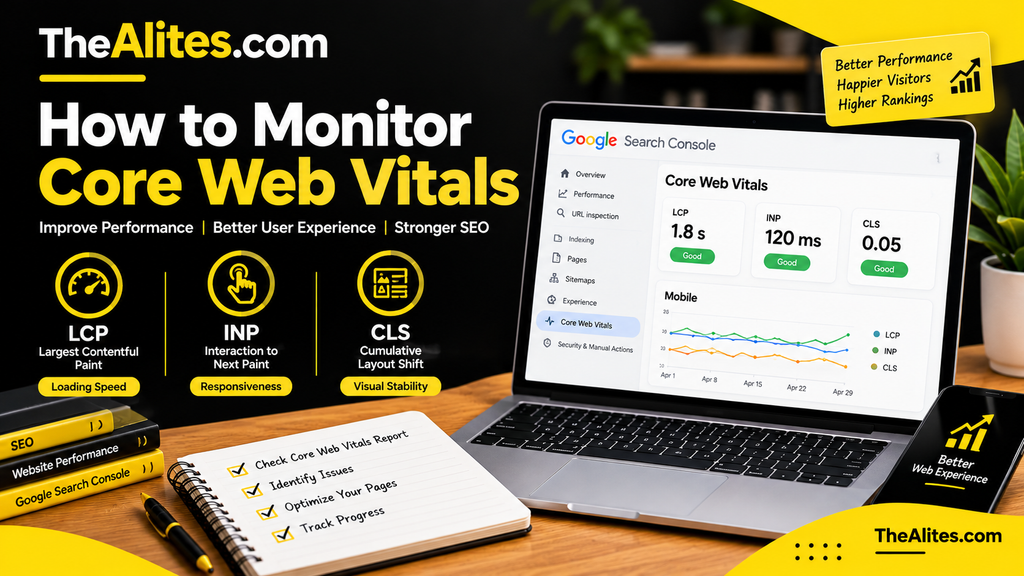
Google Search Console includes a Core Web Vitals report that provides information about certain aspects of real-world page experience when sufficient data is available.
Three important measurements are:
Largest Contentful Paint (LCP): Measures how quickly the main visible content loads.
Interaction to Next Paint (INP): Measures responsiveness to user interactions.
Cumulative Layout Shift (CLS): Measures unexpected visual movement on a page.
The report can help identify groups of URLs with performance concerns.
However, beginners should avoid treating these metrics as the only indicators of website quality.
A website also needs accessible navigation, readable content, accurate information, and reliable functionality.
If Search Console reports insufficient Core Web Vitals data for a new website, you can use Google’s PageSpeed Insights to investigate individual URLs.
Performance improvements should address real user problems rather than focus exclusively on achieving a perfect numerical score.
12. How to Identify Security Issues and Manual Actions
Search Console also provides reports related to website security and Google’s spam policies.
These reports are particularly important because serious problems can affect user safety and search visibility.
A security issue may involve hacked content, malicious software, or deceptive pages.
A manual action occurs when Google’s reviewers determine that a website or part of it violates applicable spam policies.
To check these reports, open the Security & Manual Actions section in Search Console.
Review both Security Issues and Manual Actions.
If an issue is reported, read Google’s explanation carefully before making changes.
For example, if a website has been compromised, removing the visible unwanted content may not be enough.
The underlying security vulnerability should also be identified and corrected.
After resolving a reported issue, follow the relevant review or reconsideration process when available.
Do not assume that every decline in traffic indicates a manual action. Many traffic changes result from ordinary ranking fluctuations, seasonality, technical changes, or shifts in search demand.
13. Google Search Console vs Google Analytics
Beginners sometimes confuse Google Search Console with Google Analytics because both provide website-related information.
However, these tools serve different purposes.
Search Console focuses primarily on how your website performs in Google Search.
Google Analytics focuses on measuring user interactions with your website across configured traffic sources.
For example, Search Console may show that an article received 500 clicks from Google Search.
Analytics can help you understand how visitors interacted with your website after arriving, subject to its measurement configuration and applicable consent settings.
Key Differences
| Feature | Google Search Console | Google Analytics |
|---|---|---|
| Google Search queries | Yes, with reporting limitations | Not a primary feature |
| Search impressions | Yes | No equivalent standard metric |
| Indexing reports | Yes | No |
| Website engagement | Limited | Yes |
| Multiple traffic sources | Primarily Google Search-related reporting | Yes |
| User interaction events | Not its primary purpose | Yes |
Using both tools can provide a broader understanding of website discovery and visitor behavior.
However, their numbers should not be expected to match exactly because they use different measurement methods.
Google explains these differences in its official guidance on using Search Console and Analytics together.
14. Common Google Search Console Mistakes Beginners Make
Search Console provides useful information, but misunderstanding its reports can lead to unnecessary changes.
One common mistake is assuming that every non-indexed URL represents an SEO problem.
In reality, some URLs should not be indexed separately. Examples include intentional redirects and certain duplicate pages.
Another mistake is repeatedly requesting indexing for the same article without investigating why Google has not included it in search results.
Submitting an indexing request does not override Google’s indexing decisions.
Some website owners also concentrate entirely on average position while ignoring search intent, content relevance, and actual clicks.
An improvement in average position does not always translate directly into more visitors.
Another common issue involves comparing very short periods without considering normal traffic variation or reporting delays.
For more meaningful analysis, compare suitable date ranges and investigate which pages or queries contributed to the change.
Finally, remember that Search Console is a monitoring tool.
Simply connecting your website does not automatically resolve technical problems or improve content quality.
You still need to interpret its reports and take appropriate action.
15. A Simple Google Search Console Routine for Beginners
You do not need to spend hours examining Search Console every day.
A manageable routine can help you monitor your website without becoming overwhelmed by constantly changing numbers.
The following schedule is an example suitable for a small informational blog.
| Frequency | Recommended activity |
|---|---|
| After publishing | Inspect important new URLs when necessary |
| Weekly | Review clicks, impressions and major changes |
| Every two weeks | Check important indexing issues |
| Monthly | Review top pages, queries and content opportunities |
| After major changes | Check relevant indexing and technical reports |
For example, suppose you publish four new articles during a month.
At the end of that month, review whether Google has discovered the pages and whether they are generating relevant search impressions.
If one article receives significantly more impressions than the others, investigate the queries associated with it.
You may discover an opportunity to expand a useful explanation or create a separate article addressing a related question.
Use Search Console to support informed decisions rather than treating every small metric change as an emergency.
Frequently Asked Questions (FAQs)
1. Is Google Search Console free to use?
Yes. Google Search Console is a free service provided by Google. Website owners can use it to monitor search performance, inspect URLs, submit sitemaps, and investigate certain technical issues without purchasing a subscription.
2. Does Google Search Console improve SEO automatically?
No. Connecting your website to Search Console does not automatically increase rankings or traffic. The platform provides information that can help you identify issues and make informed improvements.
3. How long does Google Search Console take to show data?
A newly added property may require several days before sufficient information becomes available. Google notes that generating data for a newly created or newly added website can take up to approximately a week. Some reports also depend on whether relevant activity exists.
4. Can I use Google Search Console without Google Analytics?
Yes. Search Console and Analytics are separate services. You can use Search Console independently to monitor Google Search performance and indexing.
5. Why are my website pages not indexed in Google Search Console?
Possible reasons include crawling delays, noindex directives, duplicate URLs, accessibility problems, and other indexing decisions. Inspect the affected URL to identify the reported reason before making changes.
6. Can I submit every new article for indexing?
You can request indexing for eligible individual URLs, subject to Google’s available limits. However, repeated submissions do not guarantee faster indexing. Maintaining a valid sitemap and clear internal linking is also useful.
7. Is Google Search Console necessary for AdSense approval?
Google Search Console is not a mandatory requirement for AdSense approval. However, it can help website owners monitor indexing and identify technical problems before applying for advertising programs.
Conclusion
Google Search Console is an essential learning and monitoring resource for website owners who want to understand their presence in Google Search.
It provides useful information about search queries, clicks, impressions, indexing status, and certain technical issues.
For beginners, the most practical approach is to verify your website, get familiar with the Performance report, submit a valid XML sitemap, and learn to inspect individual URLs.
As your website develops, you can use additional reports to monitor search visibility, investigate performance changes, and identify opportunities to improve existing content.
Remember that Search Console does not guarantee higher rankings or automatic indexing.
Its real value comes from helping you understand what is happening with your website so you can make better decisions based on reliable information.
Sources & Further Reading
For additional information about Google Search Console, website indexing, and search performance, explore these official Google resources: